Select Categories
How to Check Inventory History
March 3, 2026Section 1: Introduction
In this topic, you can review the entire history of inventory changes. This comprehensive feature allows you to track and analyze the historical data related to inventory, enabling a thorough understanding of stock fluctuations and management over time.
Section 2: How to Check Inventory History
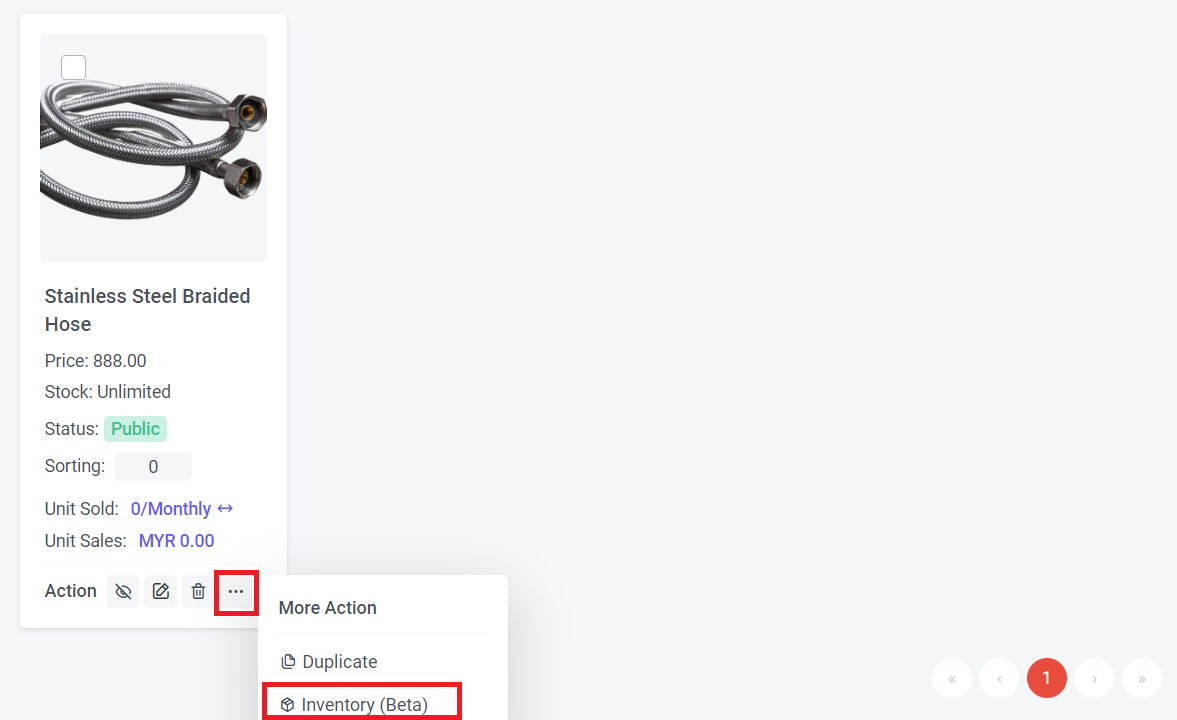
Step 1: Go to Manage > Products > All product
Step 2: Select the product
Step 3: Click ... > Click "Inventor (Beta)"

You can search for a product variant in the Variant Search column.
You can select a date range to view the inventory history.
Filter by actions such as Merchant Update, Cancelled by Merchant, API Update, Withholding, Order, and Order Cancelled.
Filter by platforms such as Website, Mobile, NEWSTORE, NMS, NEWPAGES App, Official API, Shopee, Lazada, and TikTok.
You will get the following information:
a) Date: The date of the inventory change.
b) Variant (Name & SKU): Displays the product variant name and SKU, if applicable.
c) Platform / Order ID: Shows the platform affecting the stock quantity. For an e-commerce website, or if you have enabled product mapping for marketplace sync, once an order is placed, the inventory will automatically deduct the quantity purchased by the customer. In the event of an order cancellation, the system will automatically restock the inventory.
Learn more about marketplace sync product mapping
d) Action: Indicates whether the change was due to a website order or a merchant update.
e) Quantity: The change in product quantity.