Select Categories
How to Redeem Voucher (Customer Perspective)
February 25, 2026Section 1: How to Redeem Voucher

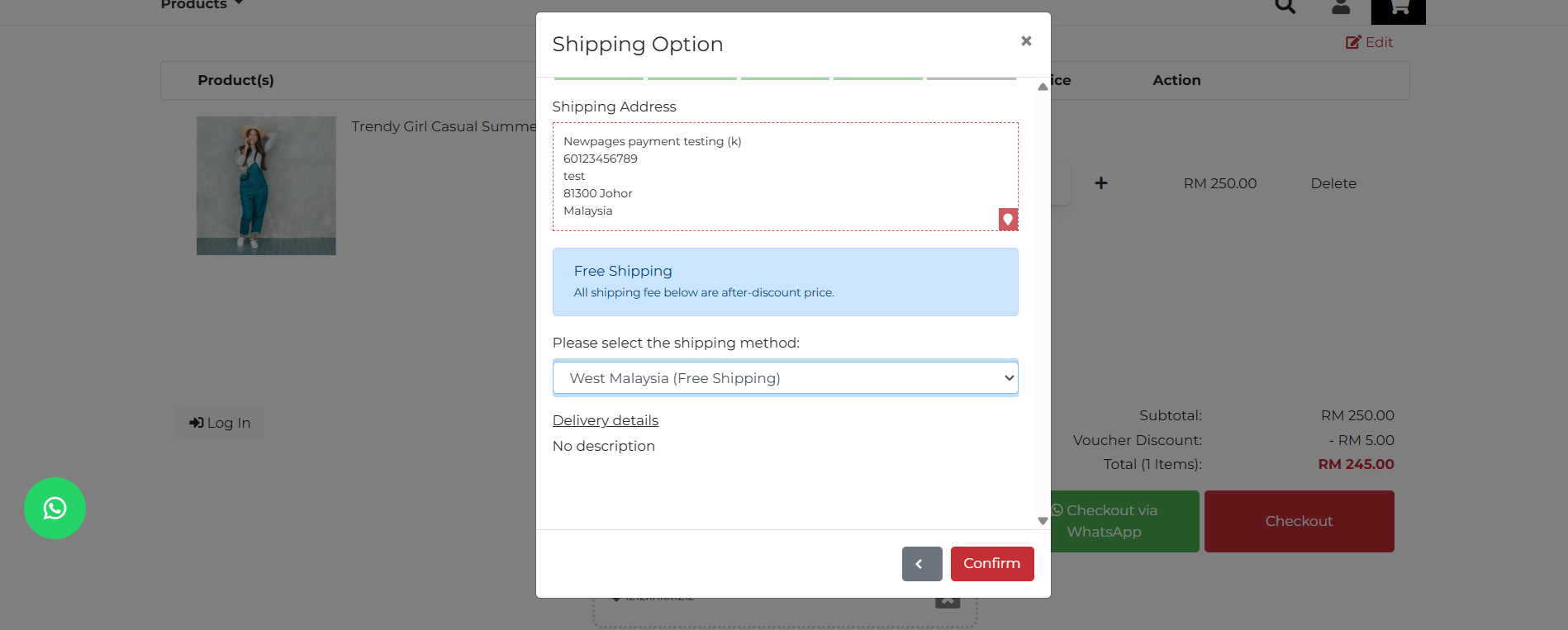
Once the user adds a product to their cart, they can click the shopping cart icon and proceed to the checkout page.
On the checkout page, there is a Redeem button. The user can click the Redeem button.
If the voucher is available, it will be shown directly in the redeem voucher list.
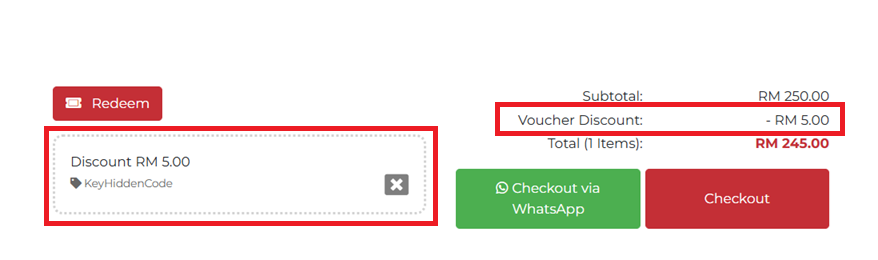
The user can simply tick the voucher to enjoy the discount.
If you receive a voucher code from the seller, you can follow the same steps as above. Simply enter the voucher code in the designated field and click the Redeem button. The voucher will then appear in the voucher list. Select the voucher to apply and redeem it.

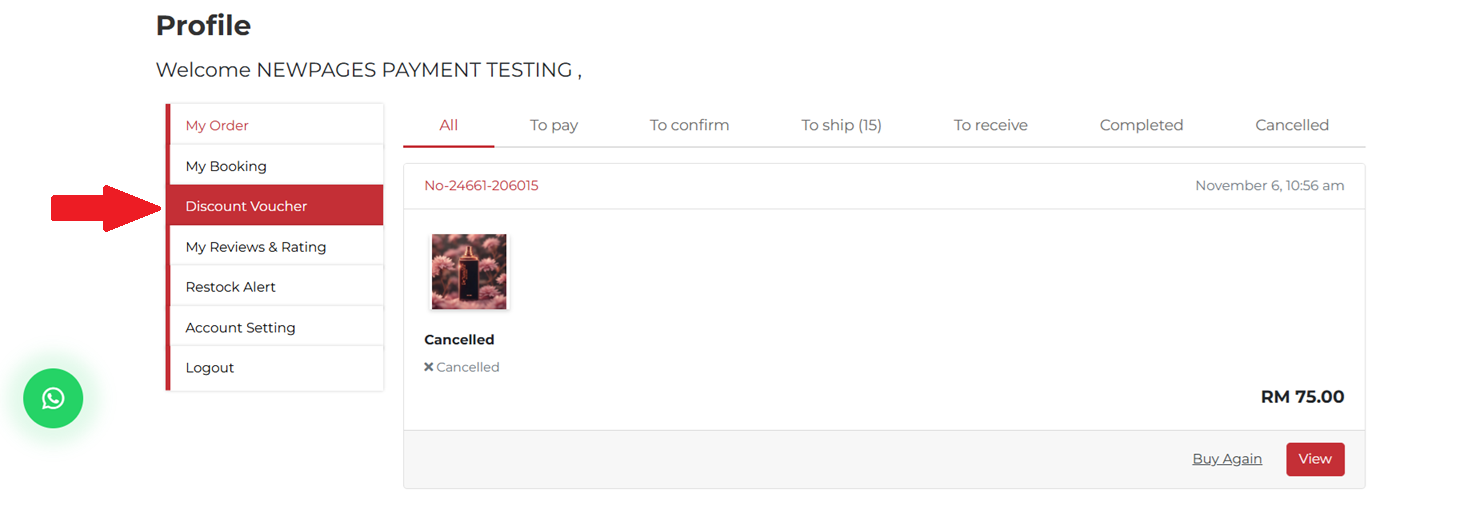
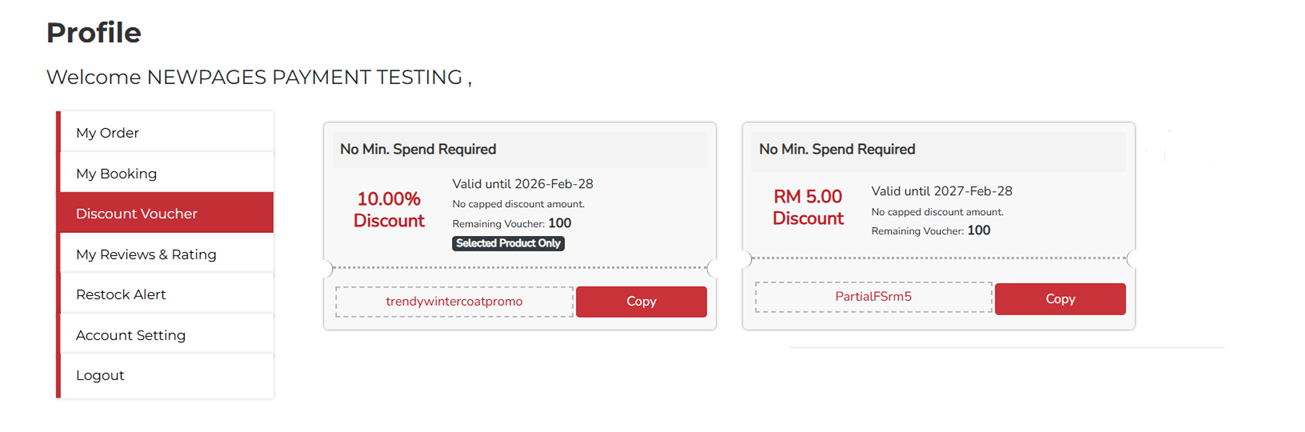
Section 2: How can Members Check Their Vouchers?
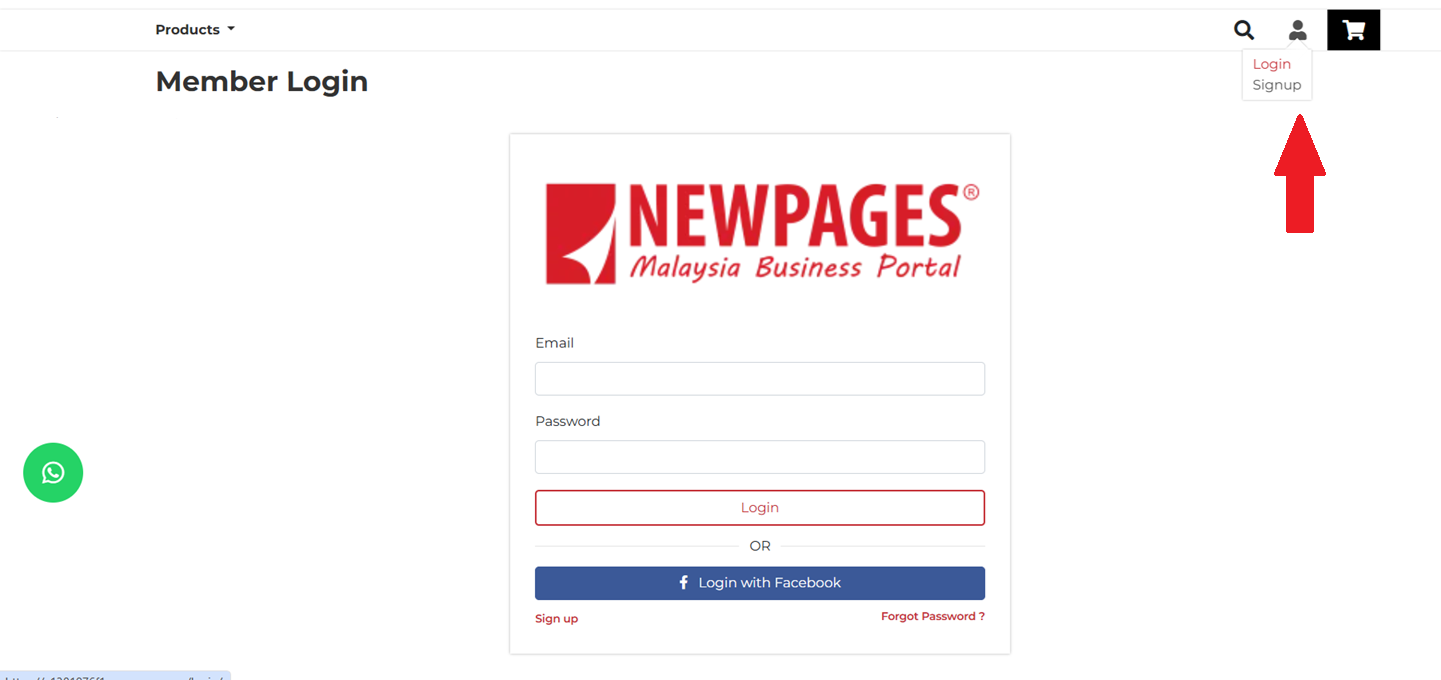
If you signed up by filling out the registration form, please enter your email and password, then click "Login."
If you registered via Facebook, click "Login with Facebook."