Select Categories
AI SEO Tools
March 26, 2026Section 1: Introduction
Section 2: Things to Note Before You Start
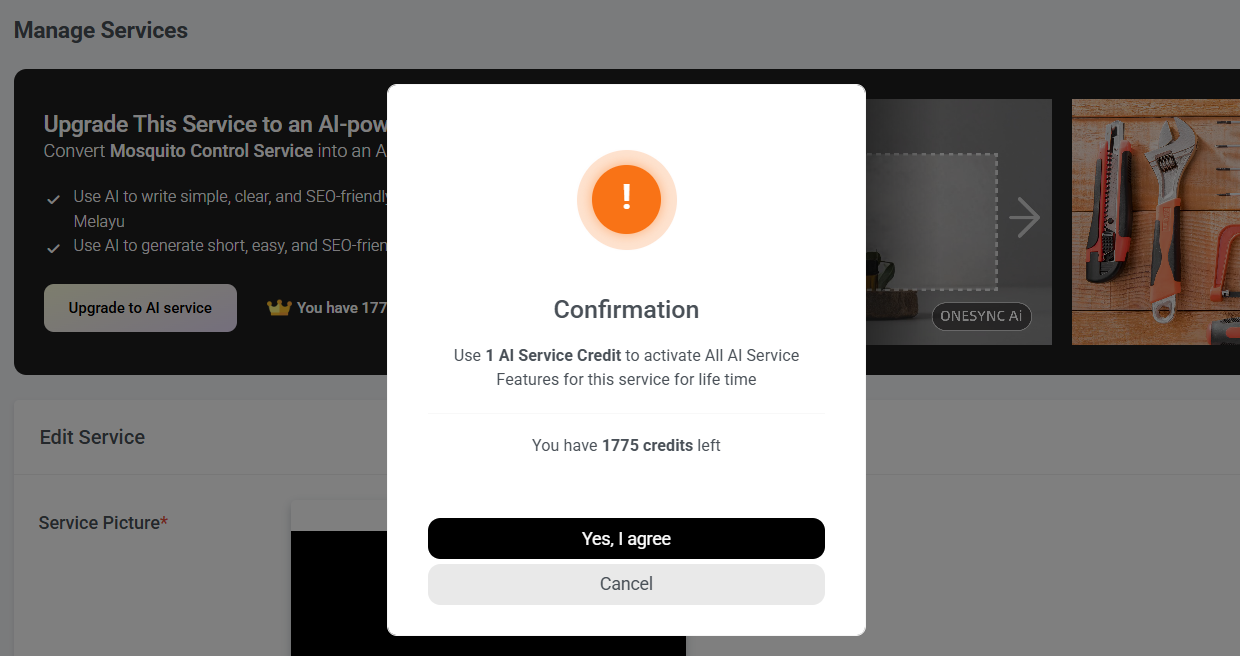
- Activate 1 AI service costs 1 credit. The number of credits you have depends on your package.
- Once activated, you can use all the AI service tools for life without any additional credit cost.
- If you delete the AI service, the credit used to activate it will not be returned.
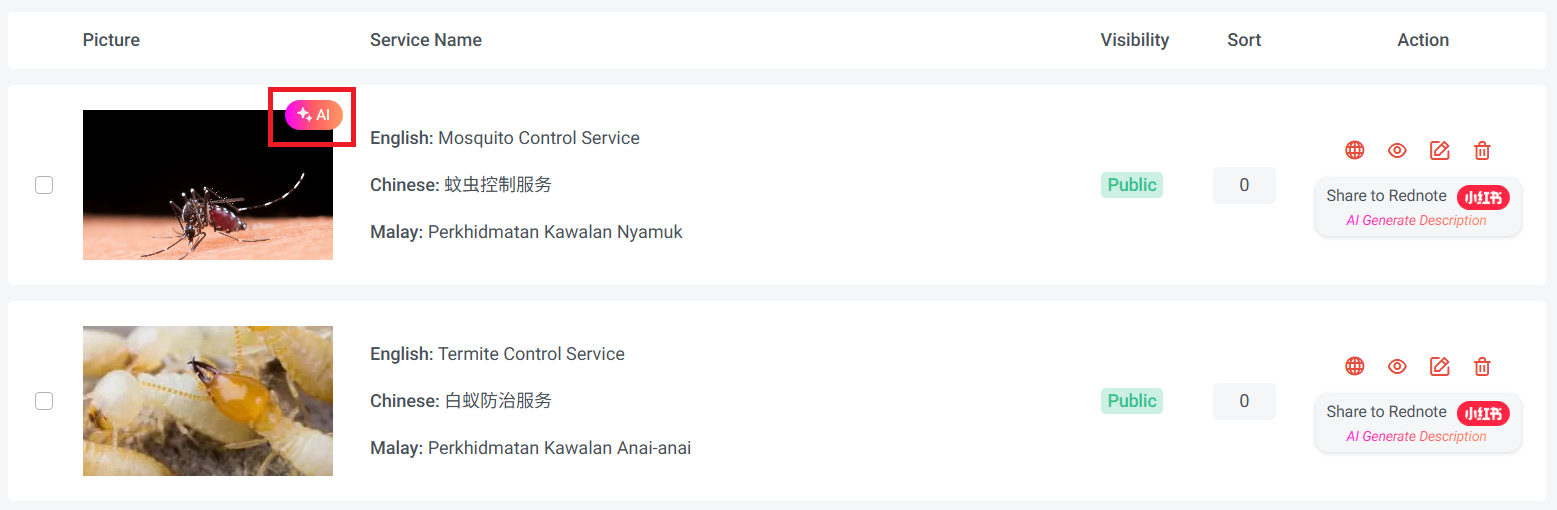
How to identify service that unlock AI-powered features
Section 3: How to Access AI SEO Tools
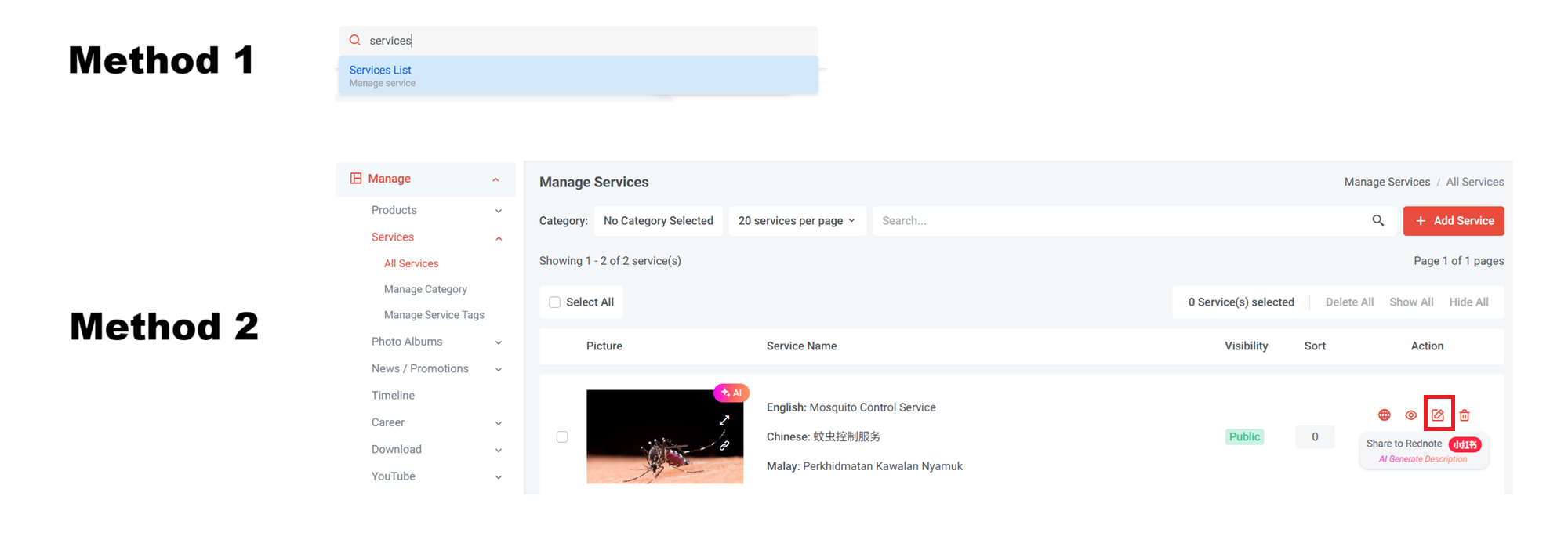
Step 2: Here are the ways to access the service list page:
Method 1: Search "Services List" in the search menu bar at the top of NMS
Method 2: Go to NMS side menu > Manage > Services > All Services
Step 3: Select the service that you wish to edit and click
Section 4: How to Activate AI Service Feature

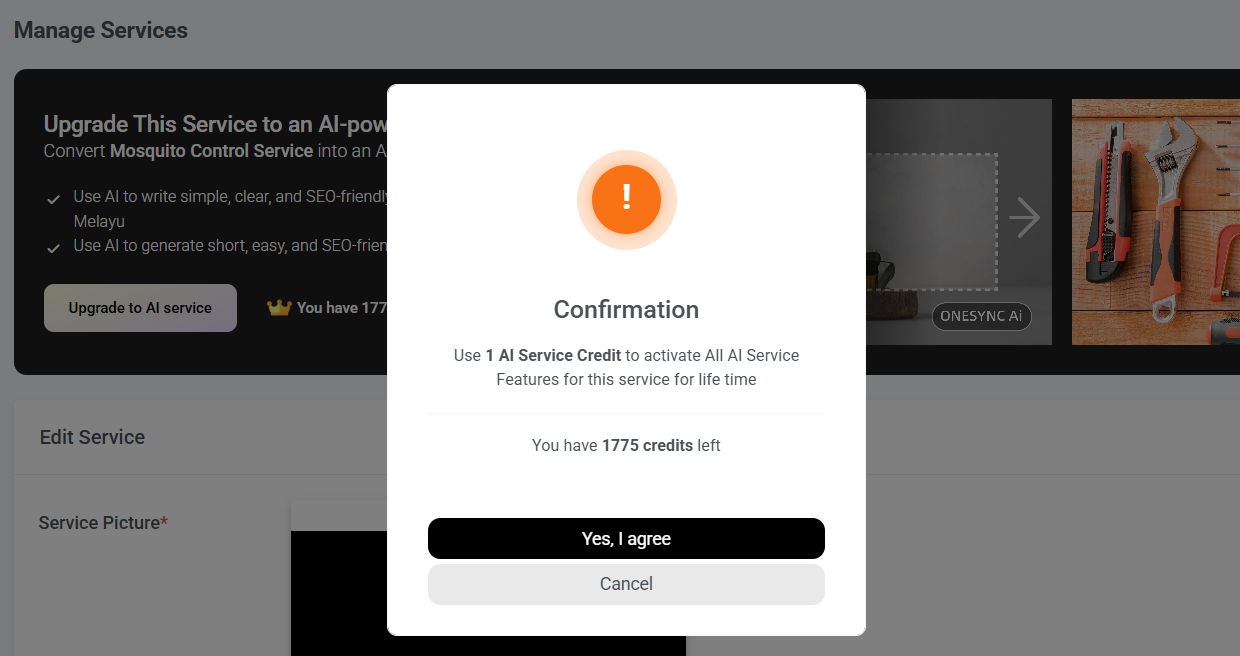
Step 2: Click the Upgrade to AI Service button
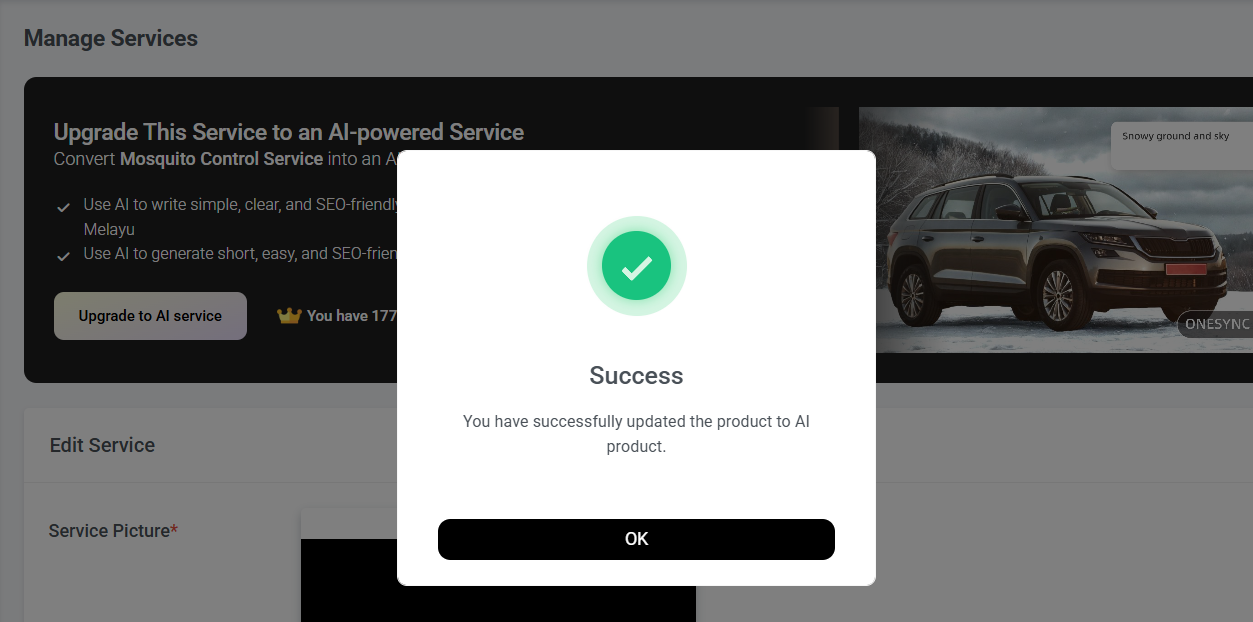
Section 5: Change AI Agent


Step 2: Browse and select the expert you prefer.
Step 3: Once you have finished choosing, click "Confirm Selection."
Section 6: AI Service Keywords

Step 2: Click "AI Tags Generator"
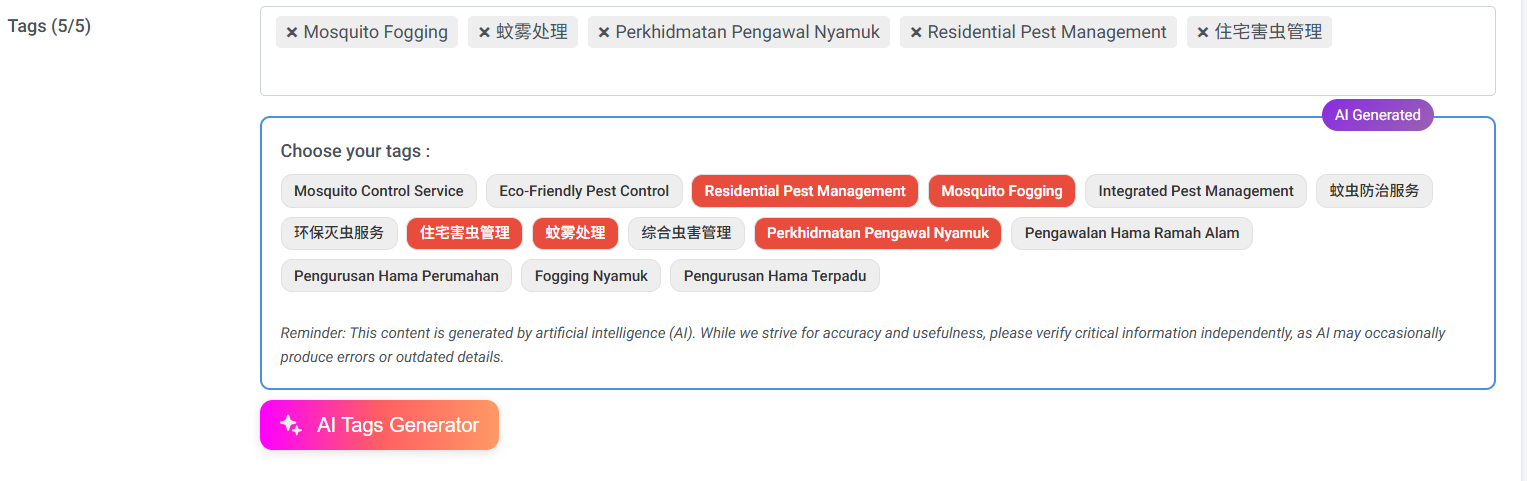
The selected keywords will be automatically applied as service tags.
If you wish to generate new suggested keywords, re-click the "AI Tags Generator" button, and this won't use up your credits.
Step 4: You can continue to add more information, such as service description (refer to section 7), FAQ (refer to section 8) and price.
Step 5: Once done, click 'Submit' to save the service.
Section 7: AI Service Description
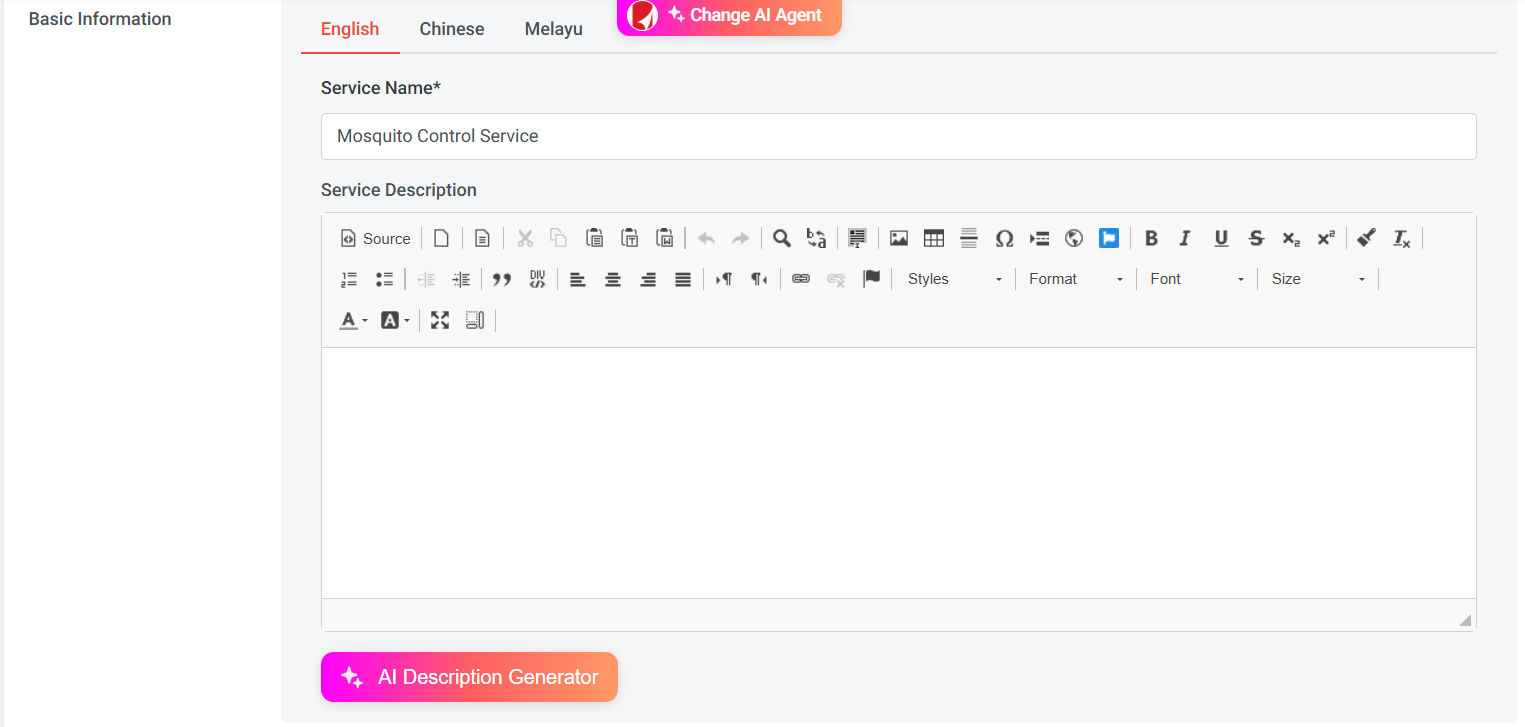
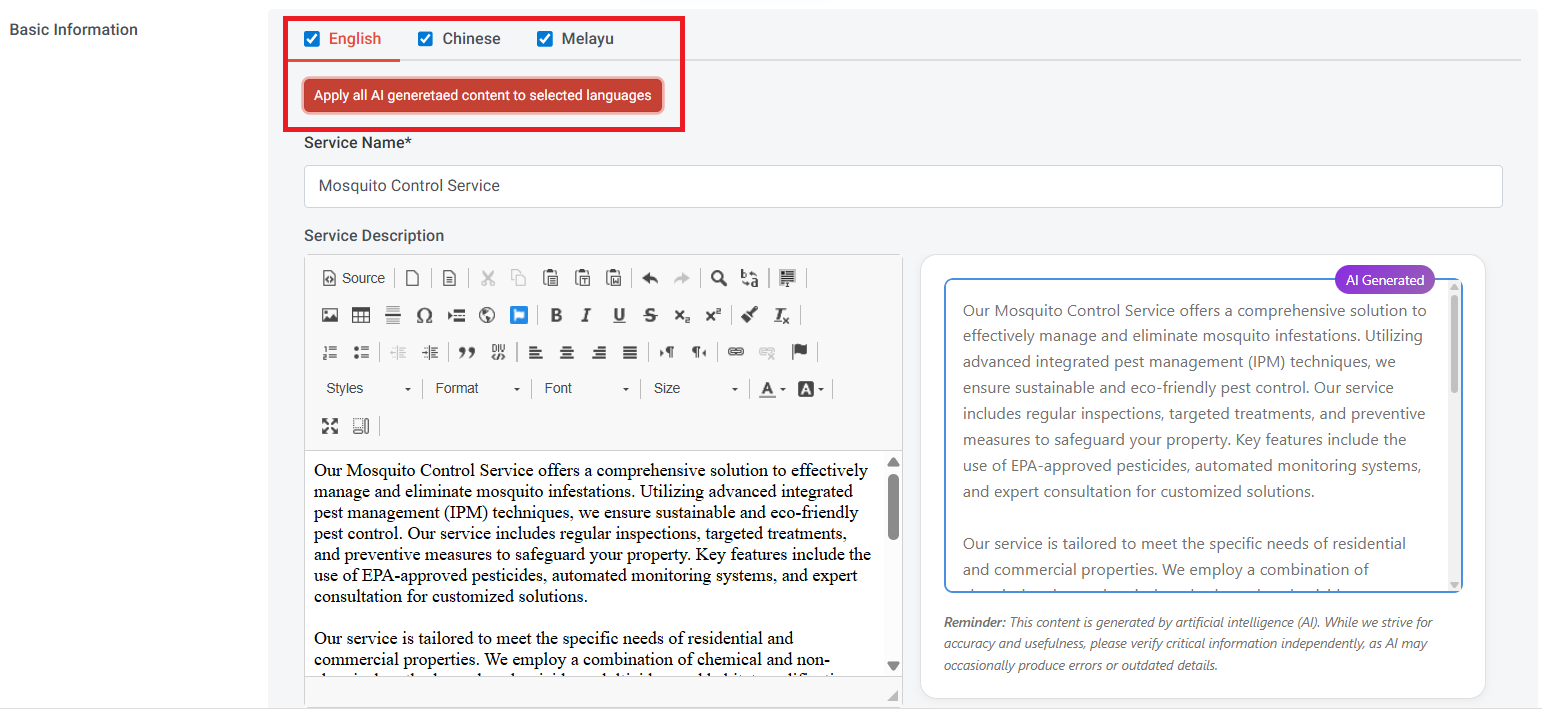
Step 4: If you're okay with the content, you can select the language and click "Apply Selected Language with AI Suggested Content".
The system will directly paste the AI-generated description to your service detail.
Step 5: You can continue to add more information, such as FAQ (refer to section 8) and price.
Step 6: Once done, click 'Submit' to save the service.
Section 8: AI FAQs Optimization
Learn why FAQ is important to your website
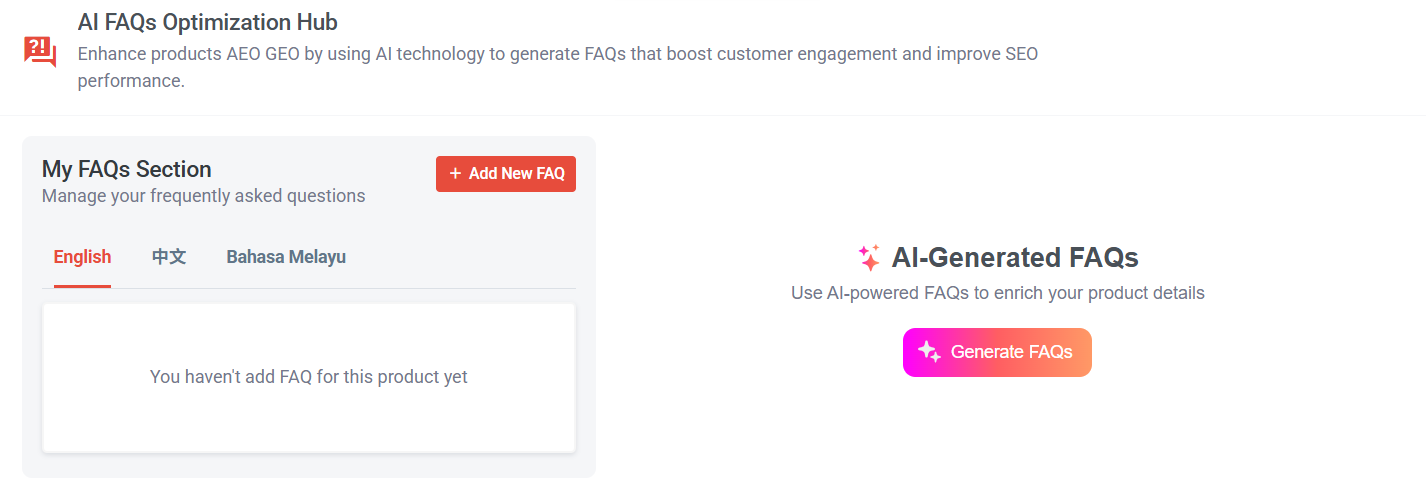
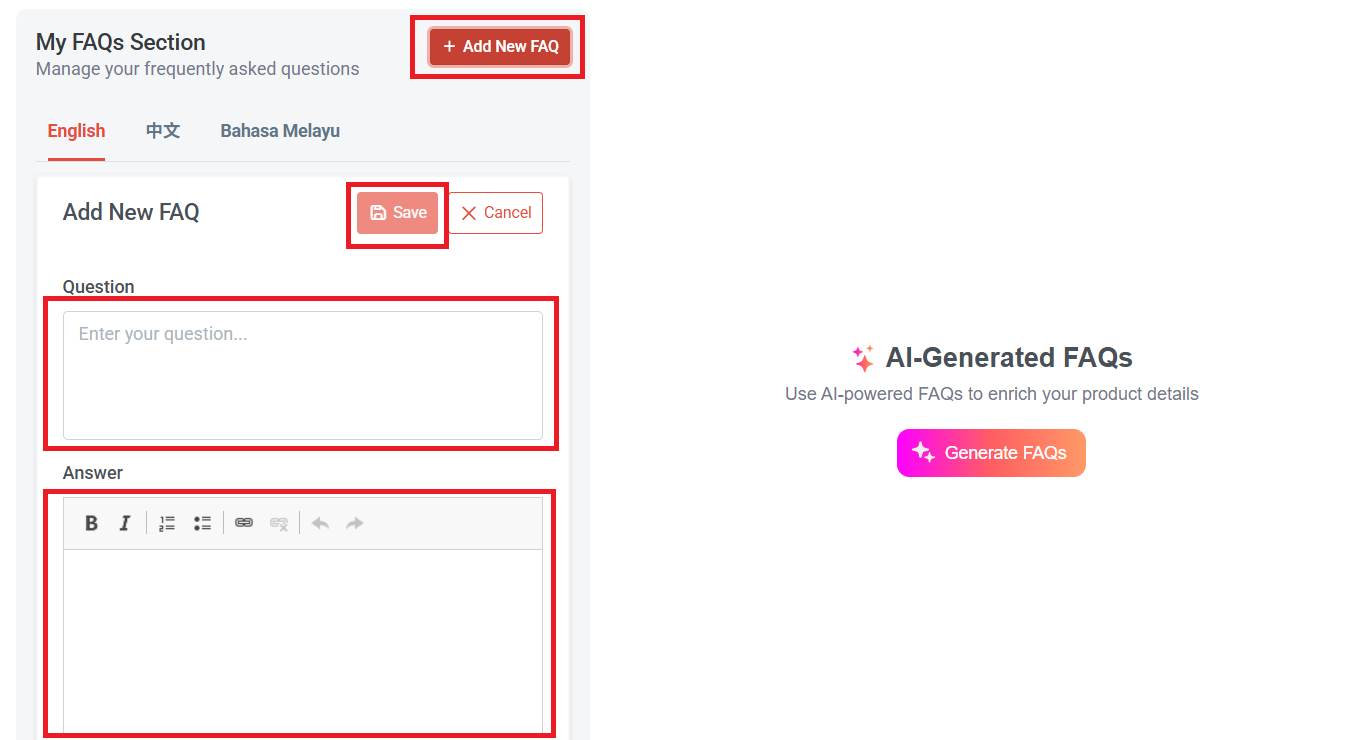
Step 2a: You can choose to manually add an FAQ by clicking "Add New FAQ".
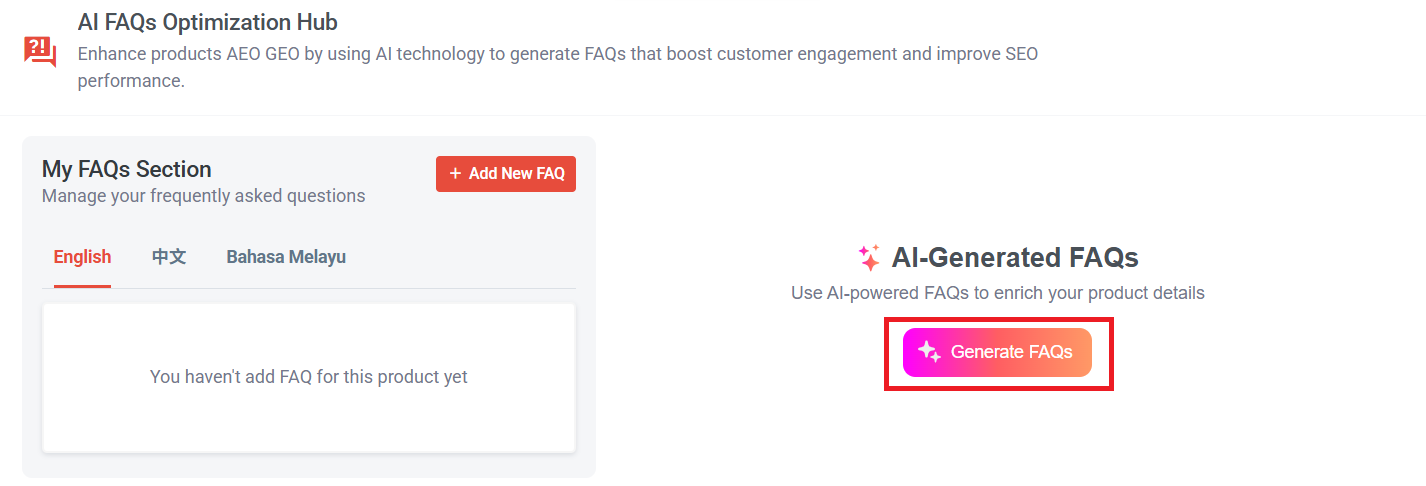

The AI system will automatically generate a set of suggested FAQs, including both questions and answers.
You can also click "Regenerate FAQs" to receive alternative suggestions.
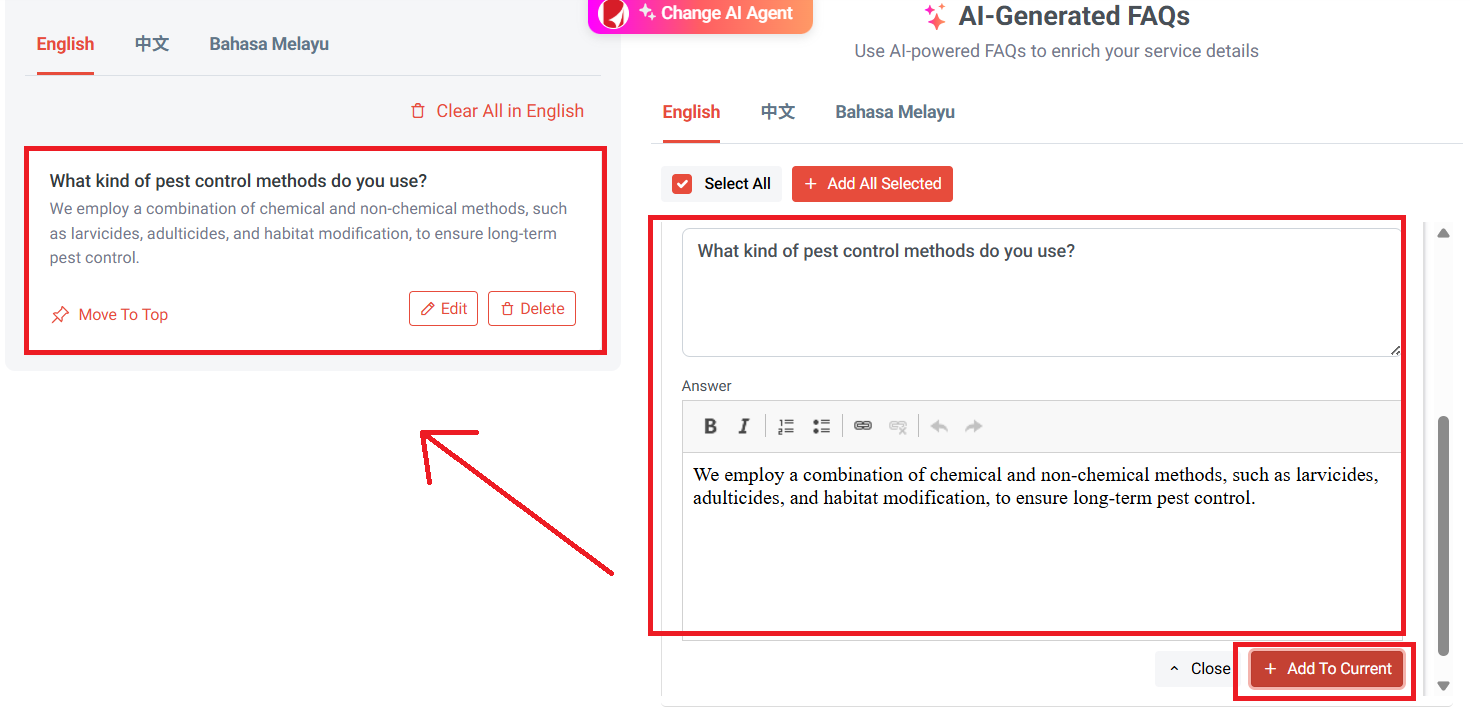
Step 3b: Select a question to view its answer. You can also edit the questions and answers directly in the column.
Step 3c: Once you’re done, click "Add to Current", and the My FAQs section will display it.
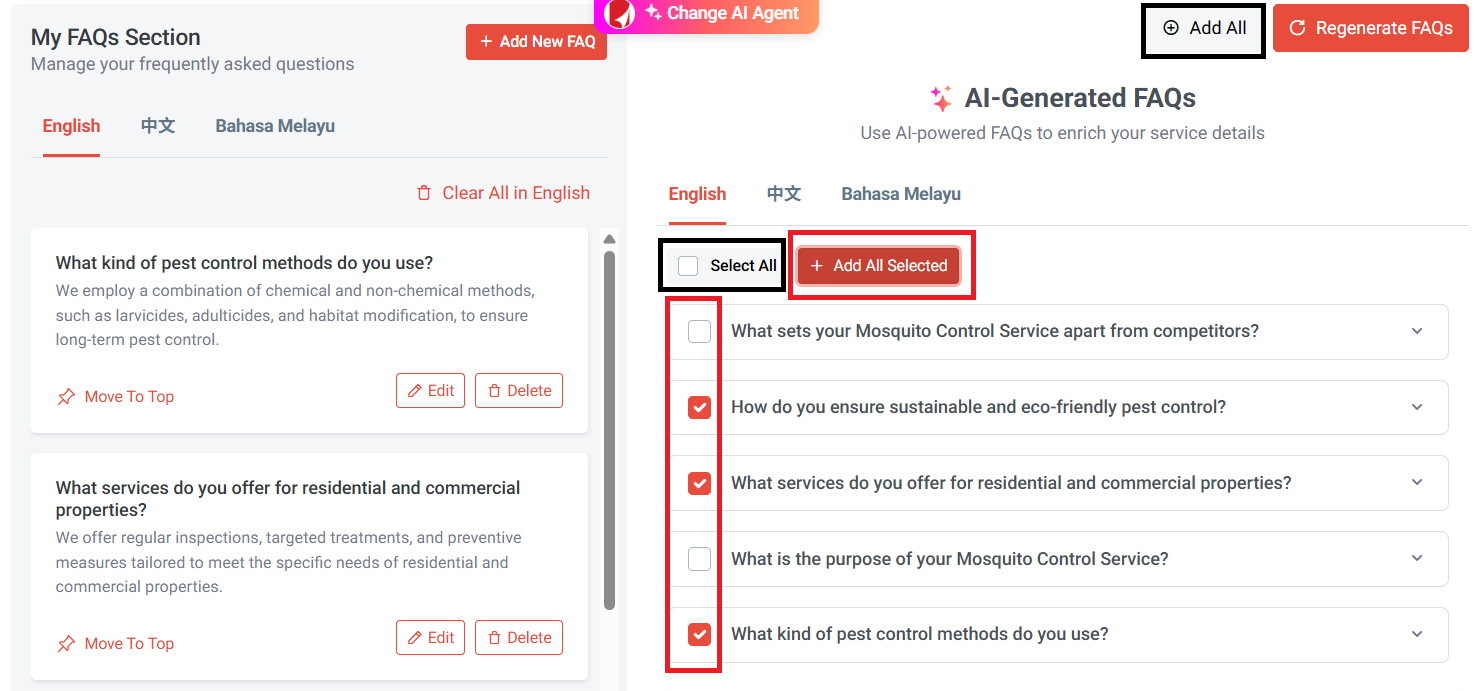
You can also select a few FAQ questions that you want to display and click "Add All Selected".
If you want to display all AI-generated FAQs, you can tick "Select All" or "Add All".
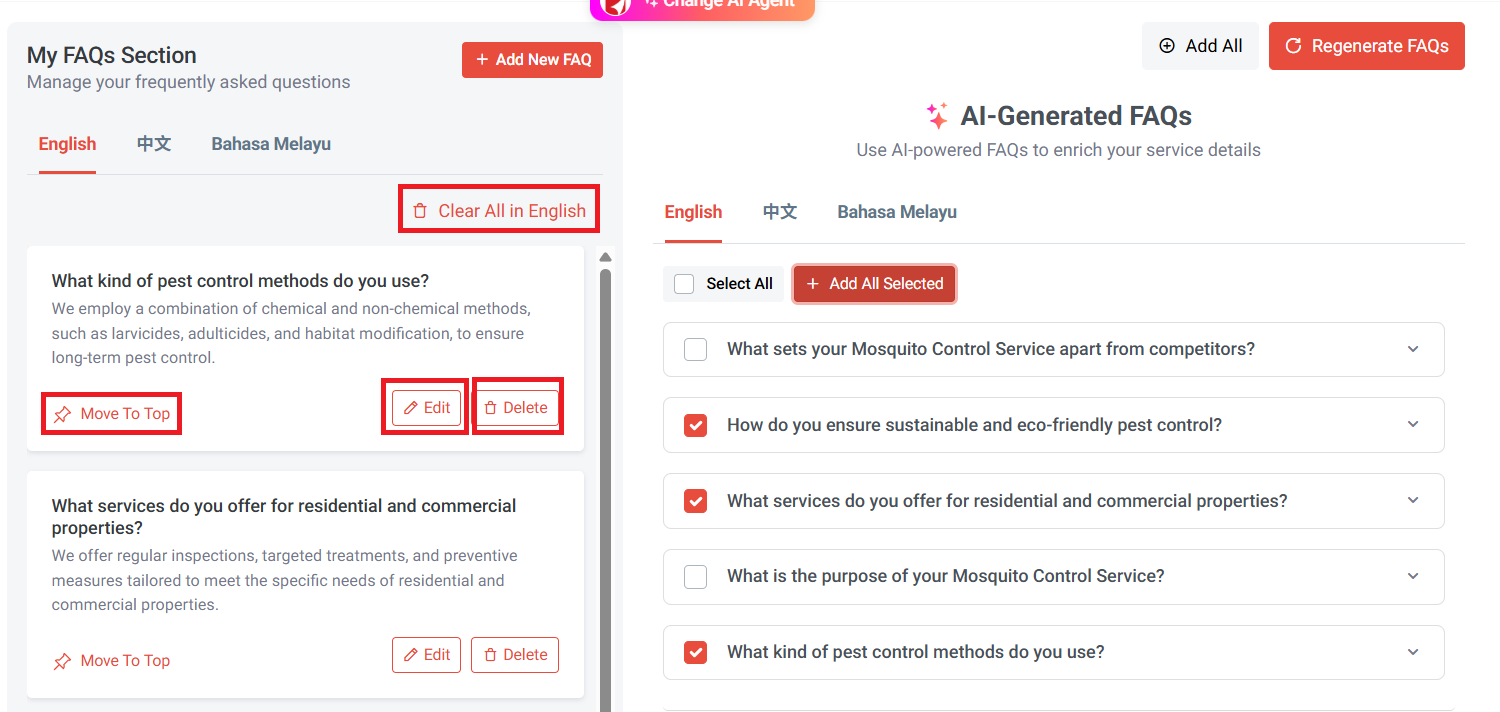
In my FAQs Section, you can click "Edit" to modify your question and answer.
If you don’t want a particular FAQ, click "Delete" to remove it. To remove all FAQs, click "Clear All in English" (depending on the language).
If you want a specific FAQ question to appear first, click "Move to Top".